
Optimizing a WordPress plugin for WordPress.org means getting nine specific things right - the title, the description, the readme, the keywords, the screenshots, the ratings, the release activity, the search visibility, and the adoption that follows - because WordPress.org's own directory reads and ranks on exactly these fields.
None of this touches Google; WordPress.org runs its own separate search over its own separate index, with its own rules.
The earlier posts in this series cover finding a niche, validating an idea, watching named competitors, and tracking your own growth once you've shipped. This one is about the listing itself - the one page that has to do the converting once any of that other work sends someone to look at it.
Two tools cover most of what's below: StatWP's readme checker handles the title, description, readme, and keyword sections, and the growth tracker handles the search-visibility and adoption sections - both get a proper walkthrough in their own section below.
1. Title: your first shot at matching a query
The title carries the most weight in a query match, ahead of the short description and long description, according to Freemius's analysis of the plugin directory's search algorithm. A keyword has to appear as a literal, exact phrase somewhere in the readme to match at all - scattering related words across fields matches worse than one exact phrase in the title.
2. Description: the sentence doing double duty
The short description - the one-line tagline shown right under your plugin's name in search results - is capped at 150 characters with no markup allowed. Open the long description with a sentence that restates the plugin's promise in its own words before explaining anything else; that first sentence is doing the same job for a skimming reader that a title does for a search algorithm.
3. Readme: the one file that carries everything else
The readme is the single file WordPress.org actually reads for everything above and below this section - title aside, your description, tags, and long-form content all live here. Getting that formatting right - headers, lists, the FAQ block - gets its own full guide; see how to write a WordPress plugin readme that looks good on WordPress.org.
Keep the FAQ section in it: that's distinct from Google's FAQ rich snippets in web search, which were removed in May 2026. A readme FAQ still renders directly on your WordPress.org listing page and still answers the objection a user has right before installing.
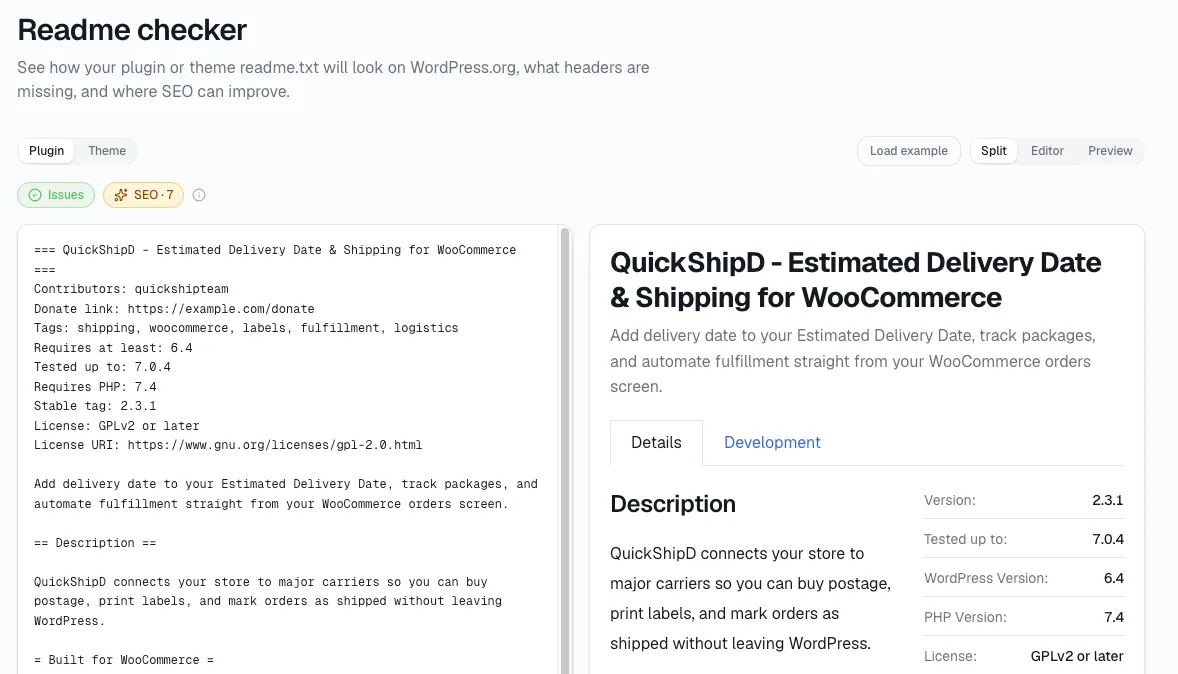
Before you publish or update it, run the file through the checker:
Open statwp.com/tools/readme and paste in your readme.txt file.
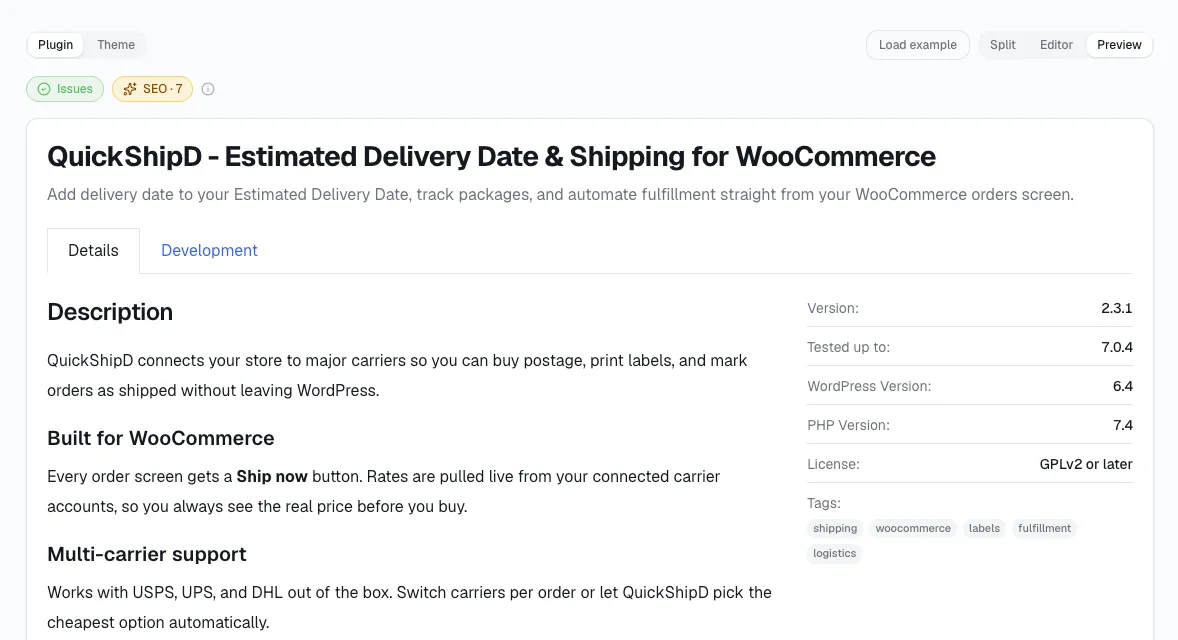
Check the live preview against how you expect the listing to look.
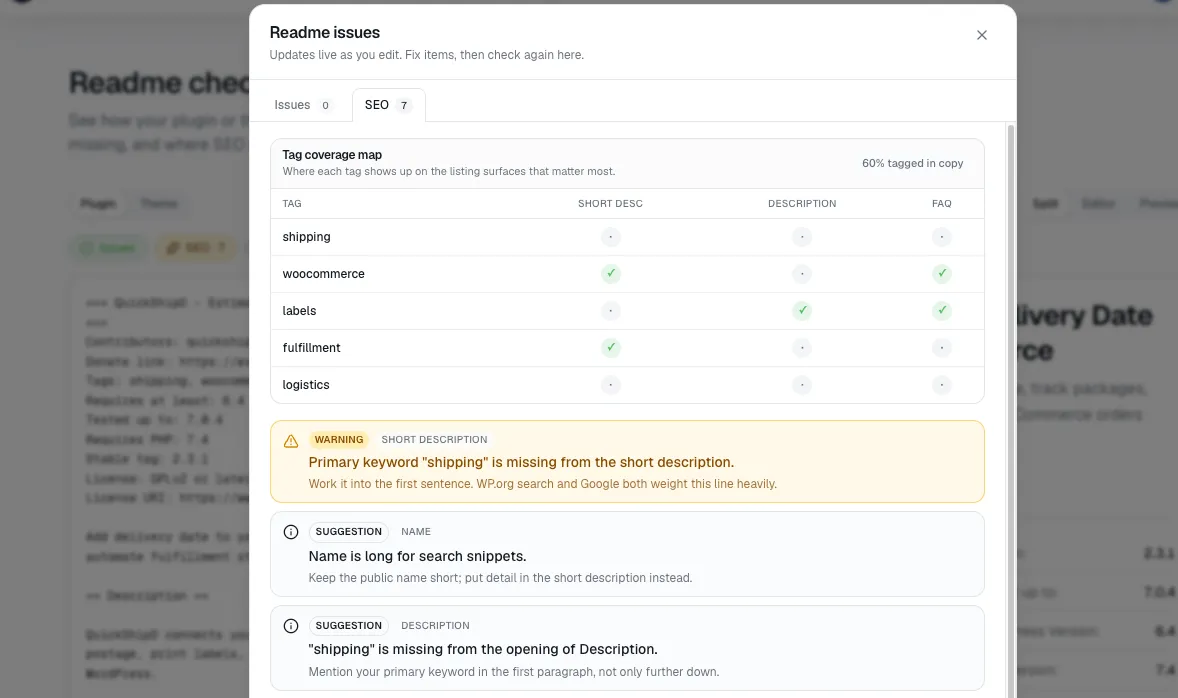
Scroll to the SEO suggestions list for anything it flags automatically.
I run every readme change through this before anyone besides me has seen the listing - it catches a formatting problem early. For a fuller pre-publish checklist beyond what the checker flags automatically, see how to check your WordPress plugin readme before publishing.
4. Tags: only the first five actually work
The Tags field technically accepts up to 12 entries, but WordPress.org's plugins team has been explicit that only the first five actually do anything for search or display - the rest exist solely for external indexing - and that stacking a plugin with tags reads as an attempt to game the system rather than a way to rank for more terms, per the WordPress.org plugins team's own tag policy.
Put your two or three real keywords in tags one through five and stop there. The readme checker you just used above already flags this for you - no need to count tags by hand.
5. Screenshots: what gets judged before anyone reads a word
Your icon and banner render before anyone reads a word in a results grid - I've found a generic default icon reads as an abandoned or unfinished plugin regardless of what's inside it.
Order screenshots by importance, not by build order; the first screenshot does the same job as the first sentence of the long description, showing the actual value rather than a settings screen.
6. Ratings: recent counts more than high
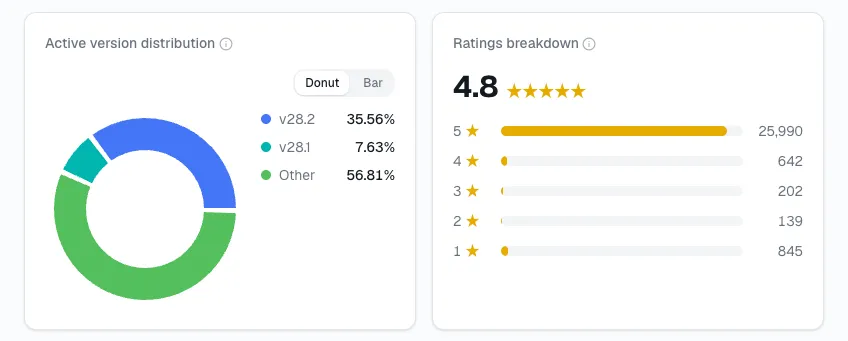
I read a high average built mostly from reviews left a year or two ago as a plugin's past reputation, not its current one. Pair the average with how recently reviews have actually landed, and read the 1- and 2-star text directly rather than trusting the number alone - ratings can be inflated by in-plugin prompts that only fire for already-happy users.
7. Release activity: the clock that's always running
Support ticket resolution rate is explicitly part of the ranking calculation - a new plugin with no support history defaults to a 50% rate, and resolving even one or two threads quickly is enough to push that toward 100%, per Freemius's analysis linked above.
There's also a roughly 180-day update window: going quiet past that point starts costing rank. Classify your own changelog entries honestly - security patch, bug fix, or real feature - because the algorithm and a skeptical user both read the substance, not just the date.
8. Search visibility: the two levers everyone can actually pull
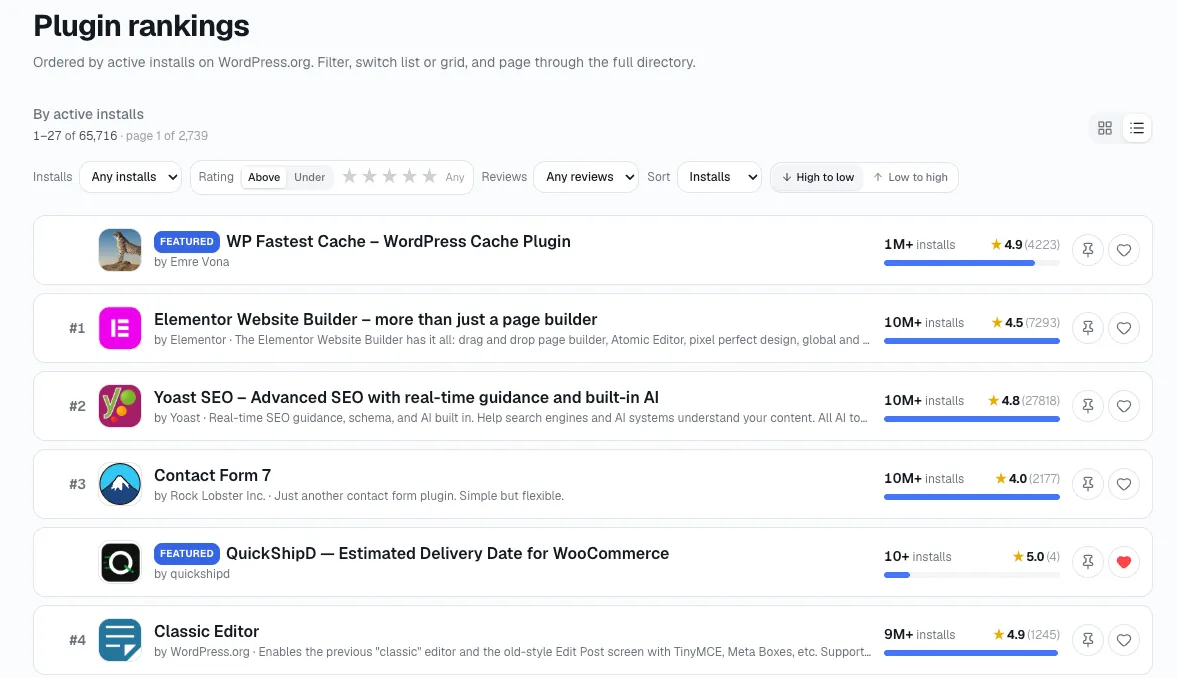
Active installs matter to rank, but with a ceiling - plugins over roughly 1,000,000 active installs get the maximum available boost from that factor, with everyone else competing on relative counts below it.
I've bumped into this before: for nearly everyone in the directory, resolution rate and update recency are the levers actually available to move rank, since the install-count ceiling isn't reachable for most plugins regardless of how good they are - see how WordPress.org plugin rankings work for exactly how those levers combine with matching and install count into the score ranking actually runs on.
Here's where to actually check that:
Open statwp.com/tools/growth.
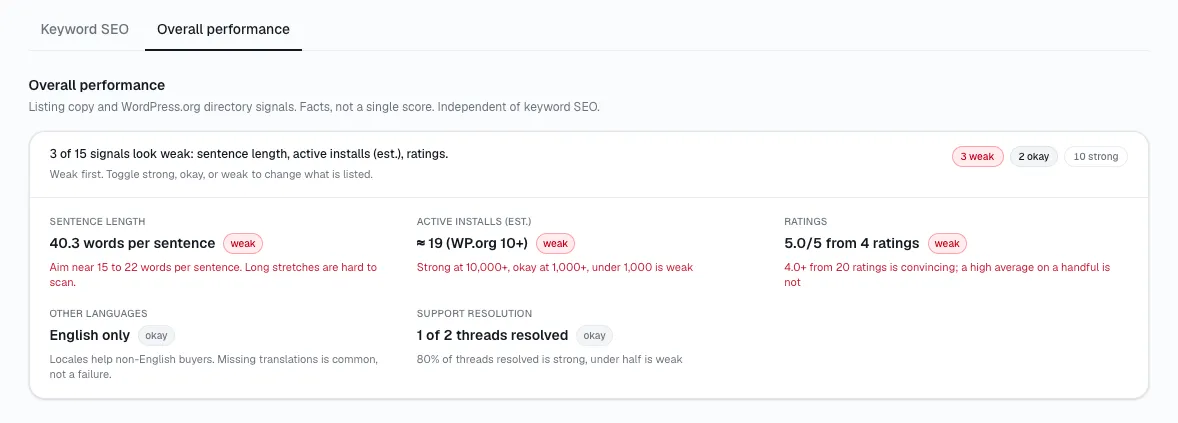
Look at the search visibility and trust score - resolution rate, freshness, and rating already rolled into one number.
Check keyword rank next to it for the specific terms your buyers search, instead of re-running a live search yourself every time you want to know if anything moved.
9. User adoption: check whether any of it actually worked
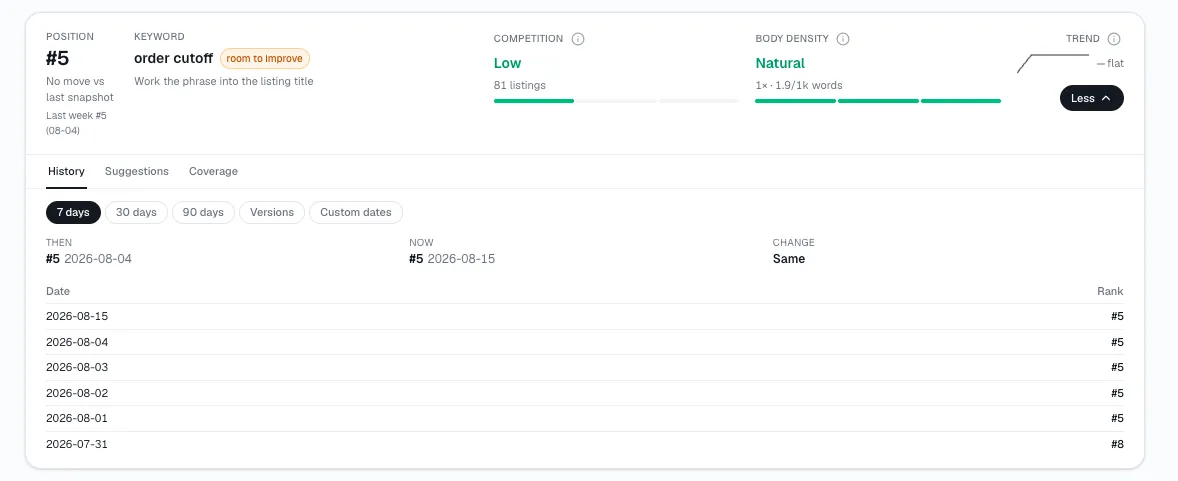
I've learned that shipping a fix to any of the eight sections above doesn't tell you whether it worked - watching what happens afterward does. Track rank history and version distribution in the weeks following a change: a title or tag update should show up as movement in rank history within a few weeks if it's working, and a readme fix should show up as your existing users updating to the version that contains it, not just new installs. For a walkthrough of what to check and how often, see how to track your WordPress plugin's WordPress.org SEO rankings.
Where you're quietly losing installs
Optimizing for Google instead of WordPress.org. These are two unrelated search engines with two unrelated ranking systems - a readme written for Google keyword density does nothing for WordPress.org's own algorithm.
Assuming all 12 tags pull equal weight. Only the first five do anything for search or display; anything placed after that isn't doing anything.
Chasing new installs while support tickets sit unanswered. Resolution rate is a direct ranking input - an unattended queue is actively working against every other optimization on this list at the same time.
Changing a section and never checking what happened after. Section 9 exists because an optimization with no follow-up check is a guess you never confirmed.
The questions people still ask after all nine
Does optimizing for WordPress.org help my Google rankings too? No - WordPress.org and Google are entirely separate systems with separate indexes, so optimizing for one doesn't move the needle on the other.
How fast do I actually need to resolve support tickets? Fast enough means your resolution rate climbs well above the 50% default new plugins start at — this lines up with what I've tracked before. Answered and marked-resolved beats open and ignored, every time.
Is it safe to use all 12 allowed tags? Using all 12 allowed tags won't get you penalized on its own, but only the first five do anything for search - treat tags six through twelve as irrelevant to search rather than as bonus reach.
Can I update my readme without shipping a new plugin version? Yes - WordPress.org re-reads the readme independently of your version number, so fixing a description or tag list doesn't require a release to go along with it.
This closes the loop this series has been building: find the niche, validate the idea, watch who else is moving, track your own growth, and optimize the listing that has to convert all of it into installs.